Determine CAD model volume and weight
Assign materials and check dimensions and center of mass
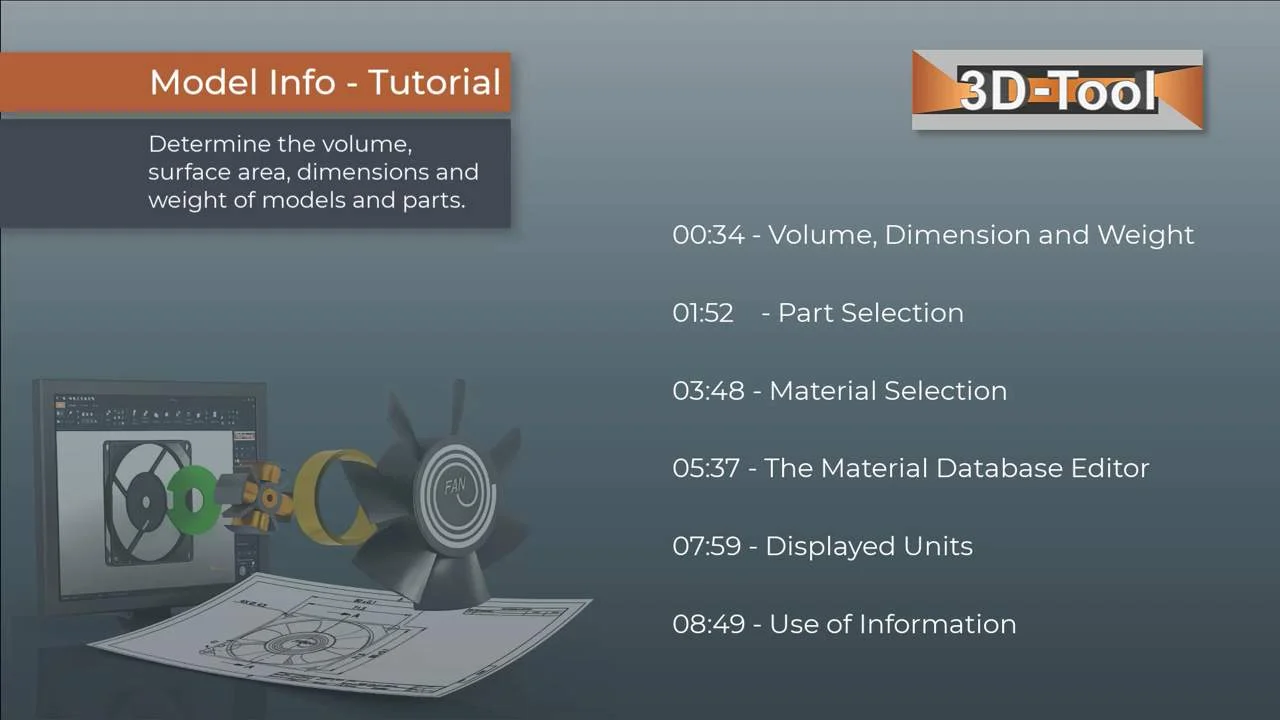
Chapter selection
Video content
- Volume, Dimensions and Weight
- Part Selection, Material Selection
- The Material Database Editor
- Displayed Units
- Use of Information
Transcript of the video
The Model Info tool quickly and easily shows dimensions, volume and weight of parts and assemblies.
At the start, the tool shows the information for the complete model. The dimensions of the selected parts are displayed in the X, Y and Z directions, as well as their weight, volume, surface area and the center of mass. The weight, volume and surface area of parts can only be calculated for closed bodies. If parts have open edges, the values are displayed in red, because defective surfaces falsify the result. Open edges and missing surfaces become visible in the Repair tool and can be repaired if necessary. Open edges often occur with IGES and STL data. Here, an unimportant design element is responsible for the open edges - so back to the Model Info tool.
These buttons navigate back and forth through all elements of the model. If several models are loaded, these buttons navigate from model to model. If only one model is available, it is selected and displayed in full. To select parts specifically, simply use the model tree. As in Windows Explorer, use the Shift and Control keys to select several elements. Double-clicking not only selects an element, but also fits it into the display. The double-click also works directly on the 3D model. Here, the clicked part is selected in the model tree.
Volume and surface area calculation is always possible, but for the weight all selected parts require a material. Here you choose the material for all selected parts. This assembly contains parts made of different materials. Upon installation, 3D-Tool offers a material list with 50 common materials. If we were to select a material now, all parts of the assembly would have this material. Therefore, we select only one part. This piece is made of iron with a density of 7.870 grams per cubic centimeter and weighs 32.815 grams. To change the material of the construction part, we simply select a material from the list, in this case Ferrite. If the material you need is not in the list, just add it. For correct results, the density must be given in grams per cubic centimeter.
The editor enables targeted editing of all materials, material transfer from models and saving and loading of materials. Single entries can be edited directly in the list. Deleting the name removes the material from the list completely. Deleting from the database does not remove the material from the model. Material that exists only in the model can be transferred to the database. Enter new material at the end of the list. The changes are automatically saved on your computer. To transfer your data to other computers, the database can be exported and imported.
According to the 3D-Tool standard units (mm or inch), information is either in millimeters and grams or in inches and grams. For larger models, displays in meters and kilograms are available. However, the values can only be correct if the model is displayed correctly in the 3D-Tool standard units (mm or inch) after import.
The information is not only visible in the tool, but is also shown in the display. Thus, the information also appears when creating images and printouts. The information for the parts currently selected can also be transferred to a spreadsheet or word processing software.