Save and manage 3D model views
Use Custom Views for animations and presentations
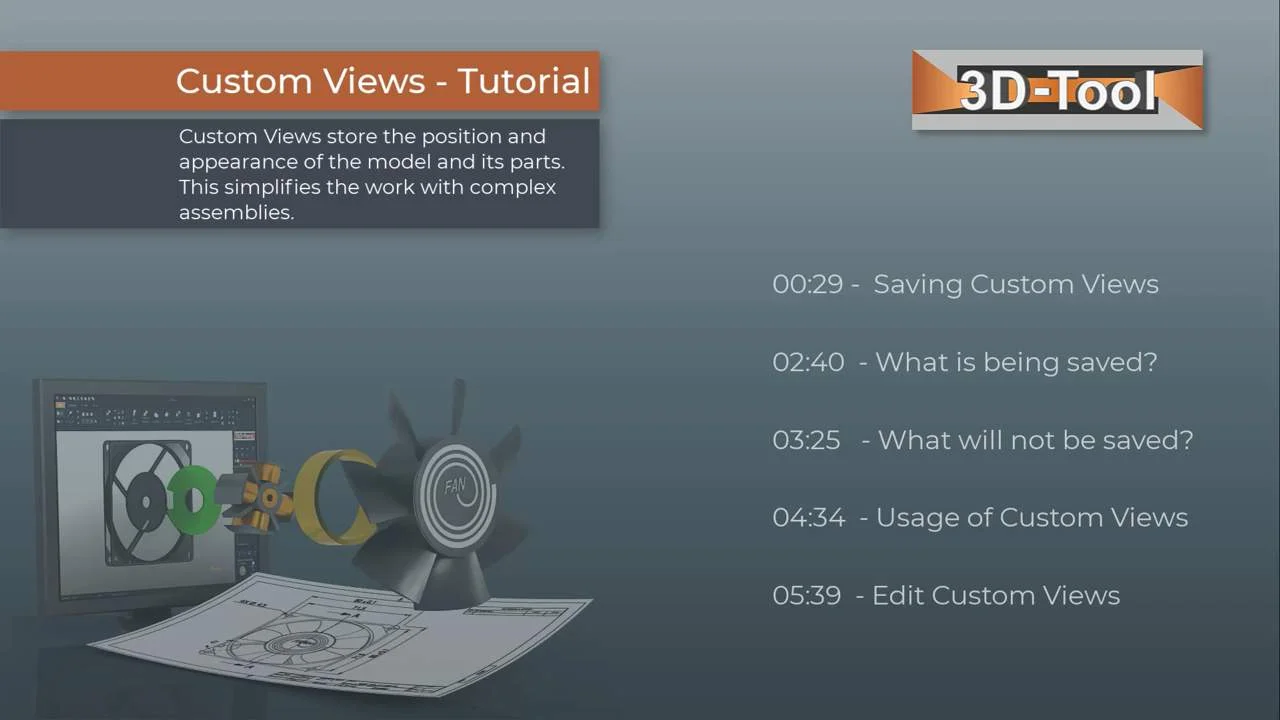
Chapter selection
Video content
- What is being saved
- What will not be saved
- Usage of Custom Views
- Editing Custom Views
Transcript of the video
Custom Views store the position and appearance of the model and its parts. This simplifies the work with complex assemblies. In the following tutorial, you will learn how to save Custom Views, what is saved with them and what is not, how to use them and how to edit them.
When working with assemblies, simple rotating and zooming is usually not enough. To examine details, parts must be hidden, cut or exploded. Often it is necessary to switch several times between different detailed views. Custom Views are a great help here. Once you have the details you need, save a Custom View. You can then always return to this view. You can save as many of these views as you like and switch to them again and again. In addition to the name you have assigned, a preview image helps when selecting the view.
Custom Views store the visibility and render mode of parts. The position and orientation of the cross-section plane. The position and orientation of exploded parts. The visibility of annotations and dimensions.
Custom Views do not save changes to the model as such. When you transform parts with the Move, Rotate, Scale and Mirror tools, all existing Custom Views are changed, with potentially undesired consequences. This also applies if you delete parts or change their color. Create important and complex Custom Views when the model is no longer being modified.
Custom Views not only help to examine and measure the model. Custom Views can be combined in images and printouts. And can be combined into simple animations.
The Custom View Editor helps you to manage your views. Here you can change names and the order of views or remove unwanted views. This creates presentations that you can browse through step by step. Or you can simply run the Custom Views as a slideshow. All Custom Views and animations are saved in the 3D-Tool format and can be used as 3D-Tool EXE or with the 3D-Tool Free Viewer anywhere in the company.